
End to End workflow for text to speech training with TAO Toolkit and deployment using Riva.
Train Adapt Optimize (TAO) Toolkit
Train Adapt Optimize (TAO) Toolkit is a python based AI toolkit for taking purpose-built pre-trained AI models and customizing them with your own data.
Transfer learning extracts learned features from an existing neural network to a new one. Transfer learning is often used when creating a large training dataset is not feasible.
Developers, researchers and software partners building intelligent vision AI apps and services, can bring their own data to fine-tune pre-trained models instead of going through the hassle of training from scratch.
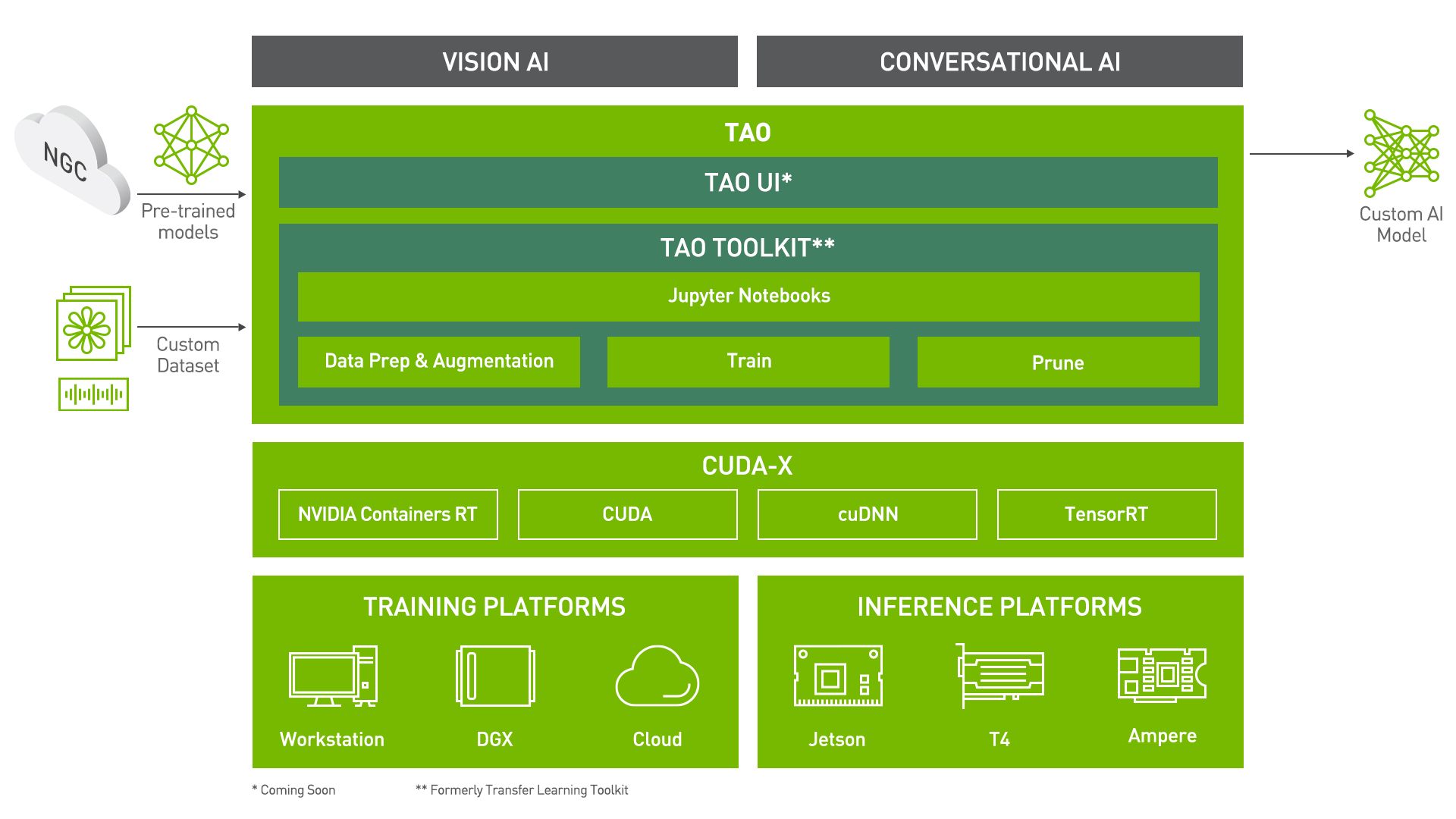
The goal of this toolkit is to reduce that 80 hour workload to an 8 hour workload, which can enable data scientist to have considerably more train-test iterations in the same time frame.
Let's see this in action with a use case for Speech Synthesis!
Speech Synthesis
Speech Synthesis (TTS) is often the last step in building a Conversational AI model. A TTS model converts text into audible speech. The main objective is to synthesize reasonable and natural speech for given text. Since there are no universal standard to measure quality of synthesized speech, you will need to listen to some inferred speech to tell whether a TTS model is well trained.
In TAO Toolkit, TTS is made up with two models: FastPitch for spectrogram generation and HiFiGAN as vocoder.
Let's Dig in: TTS using TAO
Installing and setting up TAO
For ease of use, please install TAO inside a python virtual environment. We recommend performing this step first and then launching the notebook from the virtual environment.
In addition to installing TAO python package, please make sure of the following software requirements:
- python 3.6.9
- docker-ce > 19.03.5
- docker-API 1.40
- nvidia-container-toolkit > 1.3.0-1
- nvidia-container-runtime > 3.4.0-1
- nvidia-docker2 > 2.5.0-1
- nvidia-driver >= 455.23
Let's install TAO. It is a simple pip install!
After installing TAO, the next step is to setup the mounts for TAO. The TAO launcher uses docker containers under the hood, and for our data and results directory to be visible to the docker, they need to be mapped. The launcher can be configured using the config file ~/.tao_mounts.json. Apart from the mounts, you can also configure additional options like the Environment Variables and amount of Shared Memory available to the TAO launcher.
Replace the variables FIXME with the required paths enclosed in "" as a string.
IMPORTANT NOTE: The code below creates a sample ~/.tao_mounts.json file. Here, we can map directories in which we save the data, specs, results and cache. You should configure it for your specific case so these directories are correctly visible to the docker container.
You can check the docker image versions and the tasks that perform. You can also check this out with a tao --help or
Set Relevant Paths
Now that everything is setup, we would like to take a bit of time to explain the tao interface for ease of use. The command structure can be broken down as follows: tao <task name> <subcommand>
Let's see this in further detail.
Downloading Specs
TAO's Conversational AI Toolkit works off of spec files which make it easy to edit hyperparameters on the fly. We can proceed to downloading the spec files. The user may choose to modify/rewrite these specs, or even individually override them through the launcher. You can download the default spec files by using the download_specs command.
The -o argument indicating the folder where the default specification files will be downloaded, and -r that instructs the script where to save the logs. Make sure the -o points to an empty folder!
Download Data
For the purposes of demonstration we will use the popular LJSpeech dataset. Let's download it.
After downloading, untar the dataset, and move it to the correct directory.
Using your own dataset
If you want to use your own dataset, you have to organize your own dataset following LJSpeech format
Pre-Processing
This step downloads audio to text file lists from NVIDIA for LJSpeech and generates the manifest files. If you use your own dataset, you have to generate three files: ljs_audio_text_train_filelist.txt, ljs_audio_text_val_filelist.txt, ljs_audio_text_test_filelist.txt yourself. Those files correspond to your train / val / test split. For each text file, the number of rows should be equal to number of samples in this split and each row should be like:
DUMMY/<file_name>.wav|<text_of_the_audio>
An example row is:
DUMMY/LJ045-0096.wav|Mrs. De Mohrenschildt thought that Oswald,
After having those three files in your data_dir, you can run following command as you would do for LJSpeech dataset.
Be patient! This step can take several minutes.
Training
We have a very neat interface which allows the end user to configure training parameters from the command line interface.
The process of opening the training script; finding the parameters of interest (which might be spread across multiple files), making the changes needed, and double checking everything is being replaced by a much more easy to use and visible command line interface.
For instance if the number of epochs are needed to be modified along with a change in learning rate, the user can add trainer.max_epochs=10 and optim.lr=0.02 and train the model. Sample commands are given below.
For training TTS models in TAO, we use the tao spectro_gen train and tao vocoder train command with the following args:
- -e : Path to the spec file
- -g : Number of GPUs to use
- -r : Path to the results folder
- -k : User specified encryption key to use while saving/loading the model
- Any overrides to the spec file eg. trainer.max_epochs
Please note: in order to get a TTS pipeline, you need to train BOTH FastPitch (spectro_gen) and HiFiGAN (vocoder). For HiFiGAN, since it's pretty universal for a specific language, you might just download pretrained weights from NGC and it will give you pretty good performance.
Training FastPitch
Please be patient especially if you provided an empty prior folder.
Training HiFiGAN
Instead of passing trainer.max_epochs, HiFiGAN requires definition of trainer.max_steps. Defining trainer.max_epochs for HiFiGAN has no effect!
TTS model export
With TAO, you can also export your model in a format that can deployed using Nvidia Riva, a highly performant application framework for multi-modal conversational AI services using GPUs! The same command for exporting to ONNX can be used here. The only small variation is the configuration for export_format in the spec file!
Export to ONNX
Export to Riva
TTS Inference
As aforementioned, since there are no universal standard to measure quality of synthesized speech, you will need to listen to some inferred speech to tell whether a TTS model is well trained. Therefore, we do not provide evaluate functionality in TAO Toolkit for TTS but only provide infer functionality.
Generate spectrogram
The first step for inference is generating spectrogram. That's a numpy array (saved as .npy file) for a sentence which can be converted to voice by a vocoder. We use FastPitch we just trained to generate spectrogram
You might have to work with the infer.yaml file to set the texts you want for inference
Generate sound file
The second step for inference is generating wav sound file based on spectrogram you generated in last step.
Debug
If above sound file does not have good quality, you probably need to first figure out whether it's problem of FastPitch or problem of HiFiGAN. Then you can re-train or finetune the problematic network. For this purpose, you can download pre-trained HiFiGAN from NVIDIA NGC and (1) Generate the spectrogram with your trained FastPitch. (2) Generate the wav file with NVIDIA pretrained HiFiGAN. If wav file generated in this manner is good, you know your HiFiGAN is not well-trained. Otherwise, the problem is at FastPitch
TTS Inference using ONNX
TAO provides the capability to use the exported .eonnx model for inference. The commands are very similar to the inference command for .tlt models. Again, the inputs in the spec file used is just for demo purposes, you may choose to try out your custom input!
Generate spectrogram
The first step for inference is generating spectrogram. That's a numpy array (saved as .npy file) for a sentence which can be converted to voice by a vocoder. We use FastPitch we just trained to generate spectrogram
You might have to work with the infer.yaml file to set the texts you want for inference
Generate sound file
The second step for inference is generating wav sound file based on spectrogram you generated in last step.
If everything works properly, wav file below should sound exactly same as wav file in previous section
What's Next?
You could use TAO to build custom models for your own applications, or you could deploy the custom model to Nvidia Riva!